AWS IAM Identity Center Sign-In Failure Caused by Host Clock Skew
A generic AWS sign-in error and a misleading password reset failure traced back not to IAM permissions or account status, but to a 5-hour local clock skew caused by dual-boot RTC desynchronization.
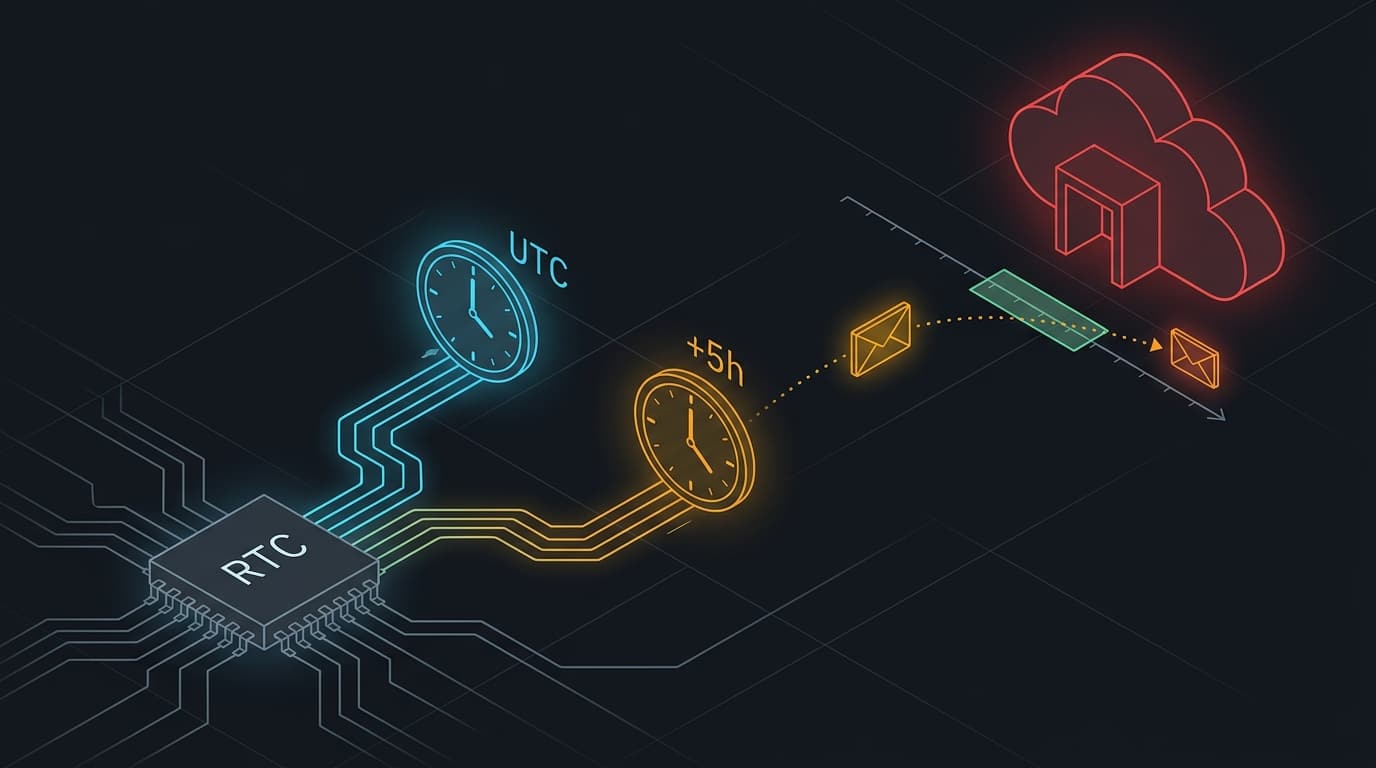
Environment: Fedora Linux (Dual-boot Windows) · Chrony / systemd-timesyncd · AWS IAM Identity Center
AWS IAM Identity Center authentication can fail in ways that point decisively toward an account or permissions disaster while the true breakdown sits quietly in the operating system’s timekeeping.
During a routine workday startup on a dual-boot machine, attempting to sign into the AWS access portal resulted in a generic failure screen. A subsequent password reset attempt produced a confusing rejection claiming that a newly chosen password had been used recently. Both symptoms strongly suggested an account-level event: revoked access, an inactive user, or an administrative policy change.
None of those were the cause. The host’s real-time clock had desynchronized across dual-boot boundaries, leaving the system clock running 5 hours and 18 minutes ahead of real time. Because AWS request signing enforces tight validity windows on request timestamps, authentication calls were rejected before they ever reached user directory logic.
Here is how the investigation unfolded, why initial assumptions were misleading, how the decisive discrepancy was isolated, and how the underlying real-time clock (RTC) state was permanently resolved.
1. Problem & Symptoms
The access portal URL loaded normally in the browser, but submitting credentials produced an immediate failure:
Sign-in Error
SIGNIN_BAD_REQUEST_ERROR
An error occurred during sign-in. Please try again or contact your administrator.
To determine whether the account was locked or had an expired credential, I initiated a self-service password reset. After entering the account identifier and submitting a brand-new, randomly generated password, the reset form was rejected:
Password Reset Error
Password cannot be reset to a recently used password.
The password had never been used before.
At first glance, these observations presented two conflicting signals:
- The sign-in flow claimed the request was bad and urged contacting an administrator.
- The password reset flow confirmed the user record existed and processed password history checks, ruling out a deleted user.
The critical, overlooked clue was visible in the desktop environment: the system clock showed a time roughly 5 hours and 18 minutes fast relative to real wall-clock time.
2. Timeline of the Incident
| Phase | Action / Observation | System State |
|---|---|---|
| 08:30 | Machine booted into Fedora Linux; AWS access portal opened. | System clock running ~5h 18m in the future. |
| 08:32 | Sign-in failed with SIGNIN_BAD_REQUEST_ERROR. |
AWS access portal reachable; sign-in rejected. |
| 08:35 | Password reset rejected new password as “recently used”. | Identity directory reachable; validation failed. |
| 08:38 | Examined server HTTP response headers vs local clock. | ~19,105-second discrepancy identified. |
| 08:41 | Inspected time daemon state with timedatectl and chronyc. |
NTP service: active, but synchronized: no. |
| 08:44 | Stepped clock and reconfigured RTC mode to UTC. | System clock snapped to real time. |
| 08:46 | Re-attempted sign-in through AWS access portal. | Authentication succeeded immediately. |
3. Diagnosis & Disproved Hypotheses
Hypothesis 1: Account Revocation or Administrative Lockout
Because the portal returned a generic bad-request error and explicitly suggested contacting an administrator, the initial hypothesis was that the user account had been disabled or permissions had been modified.
However, the password reset flow successfully located the user identity and evaluated password history policies. If the account had been expunged or disabled at the directory root, the reset flow would typically fail with an invalid user error. The identity record was intact.
Hypothesis 2: External IdP / SAML Attribute Misconfiguration
Searching public troubleshooting resources for SIGNIN_BAD_REQUEST_ERROR surfaced numerous threads regarding SAML attribute mapping failures, misconfigured audience restrictions, and relay state problems between IAM Identity Center and external identity providers like Okta or Entra ID.
I inspected the network response payload in browser developer tools. The access portal response confirmed the identity source was IAM Identity Center’s built-in directory, not an external SAML identity provider. External IdP troubleshooting guidance was irrelevant to this architecture.
The Decisive Clue: Server Timestamp vs Local Clock
AWS documentation recommends verifying local date and time settings when authentication fails unexpectedly.
I inspected the HTTP Date header returned by the AWS portal endpoint and compared it directly with the local workstation timestamp:
| Source | Reported Timestamp | Observed Skew |
|---|---|---|
AWS Server Header (Date) |
Thu, 03 Sep 2026 08:38:12 GMT |
Reference time |
| Workstation Local System Time | Thu, 03 Sep 2026 13:56:37 UTC |
+5 hours, 18 minutes, 25 seconds fast |
AWS authenticated requests rely on Signature Version 4 (SigV4) or signed bearer tokens with strict expiration and validity windows (typically within 5 to 15 minutes). A request stamped 5 hours in the future is fundamentally invalid upon arrival at the AWS edge. The edge rejects the request immediately, and the application renders a fallback error message rather than explaining that the client timestamp is in the future.
4. Investigating the Local Timekeeping State
To understand why the workstation was out of sync, I checked the system time configuration and NTP tracking state:
# 1. Inspect kernel timekeeping and RTC mode
timedatectl

# 2. Query Chrony daemon tracking
chronyc tracking
The terminal output revealed a critical configuration anomaly and a massive system offset:
# timedatectl output
               Local time: Thu 2026-09-03 19:26:42 IST
           Universal time: Thu 2026-09-03 13:56:42 UTC
                 RTC time: Thu 2026-09-03 19:26:42
                Time zone: Asia/Kolkata (IST, +0530)
System clock synchronized: no
              NTP service: active
          RTC in local TZ: yes

Warning: The system is configured to read the RTC time in the local time zone.
         This mode is not fully supported and will create various issues with
         system time.

# chronyc tracking output
Reference ID    : [NTP_SERVER_IP]
Stratum         : 2
Ref time (UTC)  : Thu Sep 03 08:38:20 2026
System time     : 19105.124512000 seconds fast of NTP time
Last offset     : +0.000142310 seconds
RMS offset      : 0.000210512 seconds
Frequency       : -12.450 ppm
Residual freq   : +0.001 ppm
Skew            : 0.045 ppm
Root delay      : 0.024120000 seconds
Root dispersion : 0.015120000 seconds
Update interval : 64.2 seconds
Leap status     : Normal
Chrony had a healthy upstream NTP reference and knew exactly what time it was. It reported the system clock was 19,105 seconds (~5.3 hours) fast. Yet, it was doing nothing to correct it.
5. Root Cause Analysis
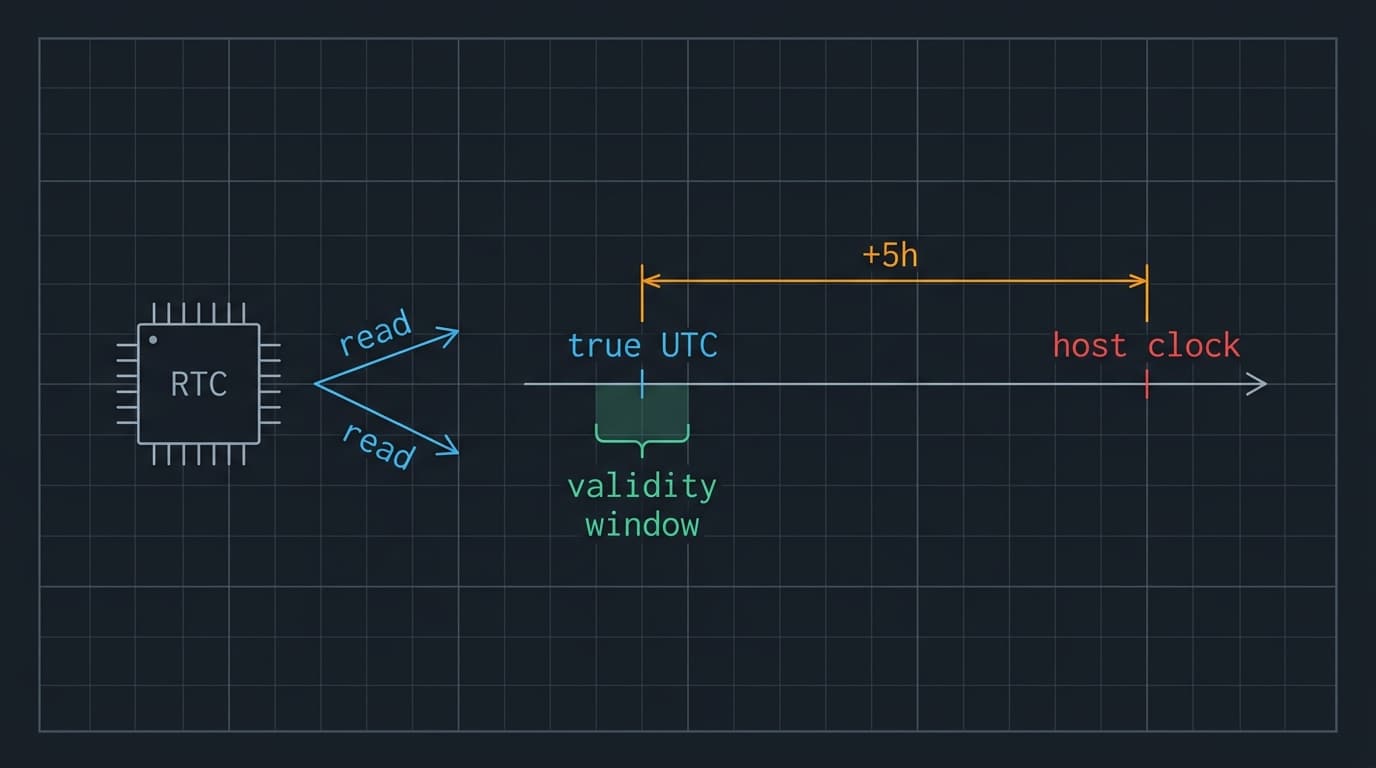
Three distinct factors converged to create the persistent clock skew:
1. Dual-Boot RTC Mode Conflict
The machine dual-boots Windows and Fedora Linux. Windows historically assumes the motherboard Real-Time Clock (RTC) is stored in local wall-clock time rather than UTC. To prevent Windows from displaying an offset time, the Linux installation had previously been configured with timedatectl set-local-rtc 1.
2. Startup RTC Interpretation Desynchronization
During system startup, the kernel reads the hardware clock to initialize system time before userspace network services start. Because the hardware clock was stored in local time (UTC+05:30), a boot-time interpretation mismatch occurred where the RTC value was read as if it were UTC.
Adding the +05:30 timezone offset on top of an RTC that already held local time pushed the clock forward by ~5.5 hours. Furthermore, the hardware clock itself had drifted roughly 12 minutes slow over months of operation, producing the observed net offset of +5 hours 18 minutes (+19,105 seconds).
The earliest entries in journalctl -b were already timestamped 5 hours into the future, confirming the clock was broken from the first second of boot.
3. Chrony’s Conservative Stepping Limit
Chrony’s default configuration on Fedora contains:
pool 2.fedora.pool.ntp.org iburst
makestep 1.0 3
rtcsync
The directive makestep 1.0 3 instructs Chrony to step the clock (jump instantaneously) only if the offset is greater than 1.0 second, and only during the first 3 clock updates after daemon startup.
If network connectivity is established after those initial three updates have completed, or if the initial NTP exchange does not converge immediately, Chrony permanently disables clock stepping. From that point forward, it will only adjust time via frequency slewing (gradually speeding up or slowing down the clock tick rate).
Chrony deliberately caps slew rates (typically at 100,000 ppm or ~10%) to prevent sudden time backward jumps from breaking running applications. Slewing out a 19,105-second offset at maximum slew rate would take approximately 53 hours of continuous uptime. Thus, the system remained stuck 5 hours in the future indefinitely.
6. The Fix & Verification
The fix required forcing Chrony to step the clock, switching the RTC mode permanently to UTC, and synchronizing the hardware clock:
# 1. Force Chrony to step the clock immediately, bypassing the 3-update limit
sudo chronyc makestep

# 2. Reconfigure the system to store the RTC in UTC
sudo timedatectl set-local-rtc 0

# 3. Synchronize the system time to the hardware clock
sudo hwclock --systohc

# 4. Verify the updated synchronization state
timedatectl
The verification output confirmed that timekeeping had fully normalized:
               Local time: Thu 2026-09-03 14:12:05 IST
           Universal time: Thu 2026-09-03 08:42:05 UTC
                 RTC time: Thu 2026-09-03 08:42:05
                Time zone: Asia/Kolkata (IST, +0530)
System clock synchronized: yes
              NTP service: active
          RTC in local TZ: no
With System clock synchronized: yes and the clock matching real time, I returned to the browser and submitted the AWS IAM Identity Center sign-in form.
Authentication succeeded immediately. The user dashboard rendered without errors.
7. Follow-Up Work & Dual-Boot Hardening
Fixing the Linux side alone is insufficient on a dual-boot machine; booting into Windows could cause Windows to see UTC in the RTC, misinterpret it as local time, and overwrite the RTC back to local time.
Configuring Windows for UTC RTC
To ensure both operating systems treat the RTC as UTC, Windows must be configured with the RealTimeIsUniversal registry entry.
In Windows PowerShell running as Administrator:
New-ItemProperty -Path "HKLM:\SYSTEM\CurrentControlSet\Control\TimeZoneInformation" `
  -Name "RealTimeIsUniversal" -Value 1 -PropertyType DWORD -Force
Chrony Policy for Portable Workstations
On developer laptops that frequently suspend, resume, and change Wi-Fi networks, an RTC desynchronization can happen long after boot.
To permit Chrony to step the clock whenever a large offset is detected—rather than only on the first three updates—the configuration directive can be adjusted in /etc/chrony.conf:
# Allow stepping on any update if offset is > 1.0 second
makestep 1.0 -1
Note: Stepping the clock backward can cause non-monotonic wall-clock jumps. While POSIX monotonic timers (CLOCK_MONOTONIC) are unaffected, applications that log or record wall-clock timestamps can experience duplicate or out-of-order records.
8. Key Takeaways
- A generic authentication error does not necessarily mean an account failure. When an access portal asks you to contact an administrator, verify transport and system integrity before assuming administrative or permissions changes.
- Compare HTTP response timestamps with your local clock. Checking the
Dateresponse header againstdate -uprovides an immediate, zero-cost detection of clock skew. NTP service: activedoes not mean the clock is synchronized. Always verifySystem clock synchronized: yesintimedatectl. An active NTP daemon may simply be refusing to step a massive offset.- Identify the exact directory architecture. Troubleshooting tips for external SAML/OIDC federations do not apply to IAM Identity Center’s built-in directory. Check network payloads to verify which subsystem is failing.
- Always standardize RTC on UTC. Running the motherboard RTC in local time across dual-boot systems is inherently brittle and causes silent offsets during seasonal changes or kernel initializations.
Related: four days later the same portal failed again for a different reason. See AWS IAM Identity Center Sign-In Failure Caused by an MTU Black Hole.